In previous articles, we covered how to add source control to your DMN project and manage a remote repository within your DMN model. In this guide, we'll go through how to commit your changes and push them to the linked remote repository. Regularly committing and pushing changes is crucial because it ensures that your model is versioned, traceable, and recoverable, supporting collaboration and reducing the risk of losing important changes or overwriting each other's work in team environments.
How to Commit Changes
Afterward making changes to the DMN model in FlexRule Designer, you can see a number of files that have been changed at the bottom right corner of the FlexRule Designer.

- Click this indicator to open a window listing all changed files.
- You can:
- Commit and Push: Save changes locally and push to a remote repository if set any.
- Commit: Save changes locally
- Show Changes: Compare your changes with the previous version
- Select All / Deselect All: Choose which files to commit
- Commit Message: Add a meaningful comment to describe your changes

To push your changes, you need to connect to a remote repository. At this stage, you can either Commit only and then Push later or Commit and Push your changes together.
How to Push Changes
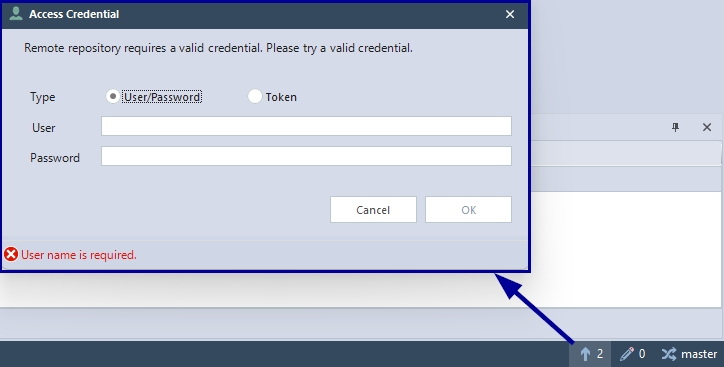
Let's say you only Commit in the previous step. Once you commit changes, you can see the number of commits waiting to be pushed to the remote repository.
Click on the push icon and you can enter the credentials to your remote repository (in this example: Git) account. You can use the login or the token. If the branch does not exist, it will create the branch and push.
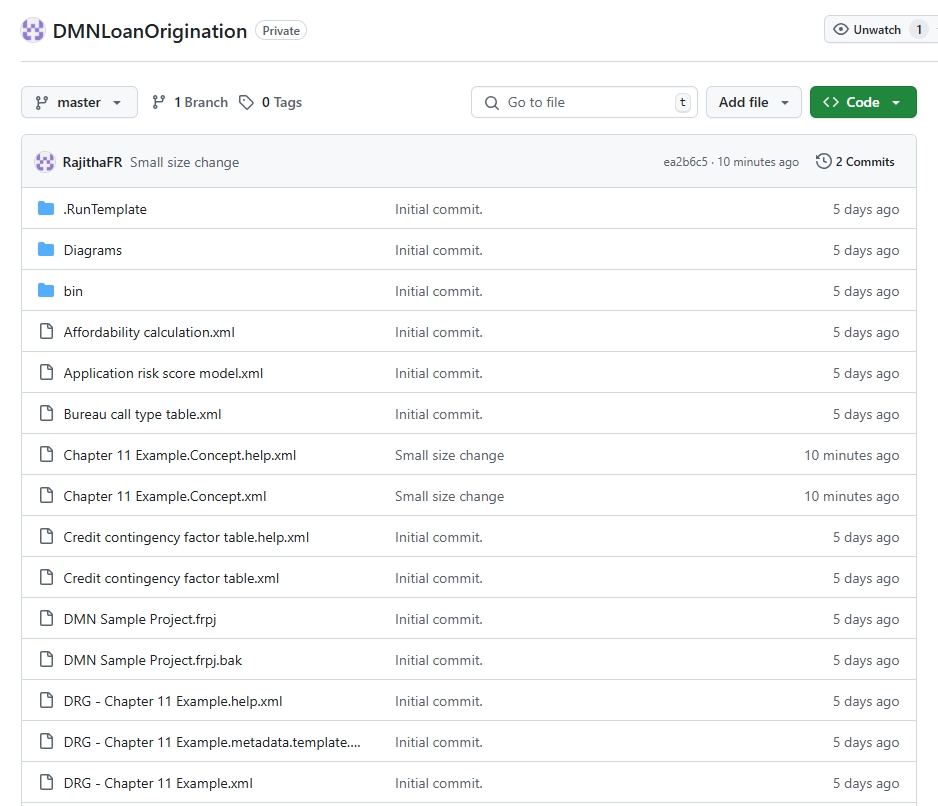
Then, you can see the updated remote repository as follows.
Summary
This article explains how to commit and push DMN model changes to a remote repository. This ensures your model changes are versioned and easily shared with your team. We'll go through how to pull changes from remote repository and resolve conflict in another article.