When collaborating on Decision Model and Notation (DMN) models, especially with multiple team members, change conflicts are inevitable. In this article, we’ll walk you through how to manage, resolve, and review changes using FlexRule Designer when conflict arise.
While you work on your DMN project, other team members might be making changes to the same logic document. If those changes overlap, a conflict occurs. When you going to push your changes to a remote repository, FlexRule Designer detects these conflicts and provides you with user interface to resolve them efficiently.
Detecting Conflicts
When you attempt to commit your changes, the platform checks for any simultaneous modifications by other team members. If a conflict is found, you’ll receive a notification window.

When you click “Yes” it will show you which files have conflicts by a little notification mark next to the document.

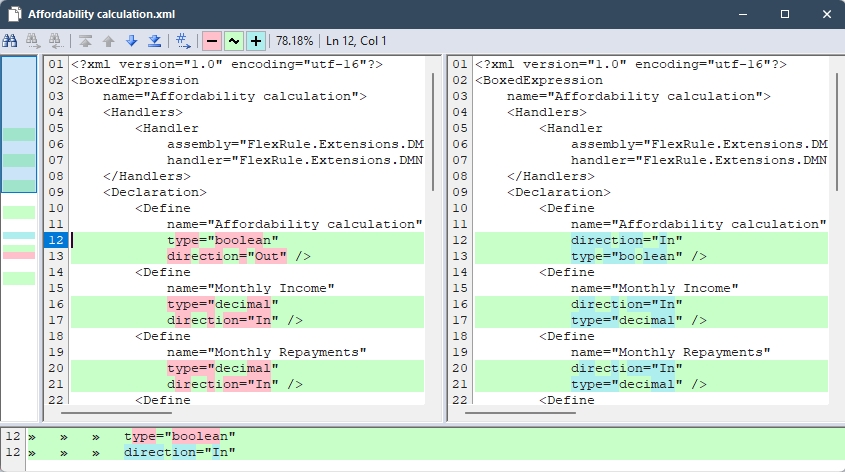
Comparing Changes
Before resolving changes, FlexRule Designer allows you to:
- View a side-by-side comparison of your changes versus the remote repository document state.
- Identify exactly what has changed—making it easy to spot conflicts and understand their impact.
Resolving the Conflicts
You have two options:
- Accept Your Changes: Override the remote repository document with your version.
- Accept Their Changes: Keep the other team member’s version.

Conflict Resolved
After selecting either of those, the UI will allow you to commit and push your changes with a commit message.

Summary
Change conflicts in logic documents are an everyday use case when collaborating with a team to model business decisions using DMN. FlexRule Designer helps to resolve conflicts, compare changes, and accept desired versions via a user-friendly interface. This will allow nontechnical users to minimize errors and maintain project integrity when working with a team to model business decisions.