Placing business rules inside stored procedures, database triggers, or SQL scripts mixes data storage with decision logic. This approach becomes fragile, procedural, repetitive, time consuming, heavily dependent on strong technical skills, and not easy to maintain. When database schemas evolve, your decision model will fail to execute. Business Rules decoupling from your database ensures a clean boundary between decision logic and physical data storage.
To solve this, we establish a governed, structured semantic layer that separates physical data sources from business rules. This guide provides a practical, step-by-step walkthrough about how to decouple business rules from your physical database using a governed, structured semantic context layer, our patented innovation – LiveContext™.
Connect to a raw data source
To decouple business rules, the first step is to connect to multiple required data sources. They might be flat files, databases, files such as CSV, XML, JSON, or even some applications and online services. In this example, we’ll use the database as our data source.
Create an Empty Decision Knowledge Document
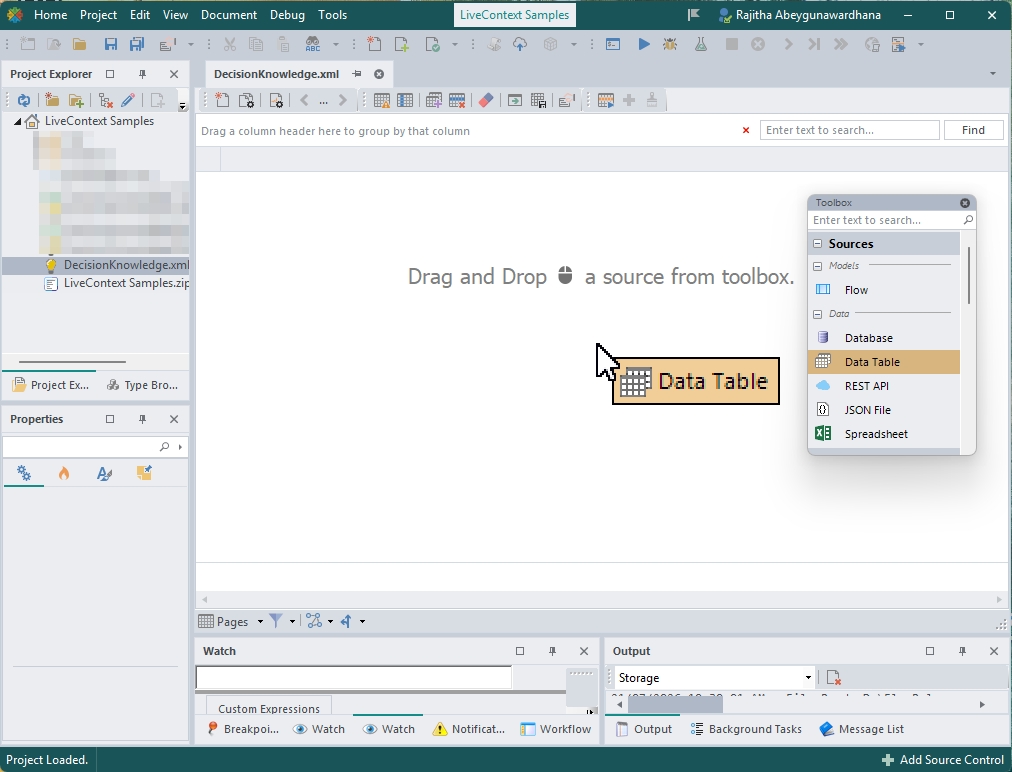
You can create an empty Decision Knowledge document and drag and drop the Data Table element from your toolbox to the canvas.
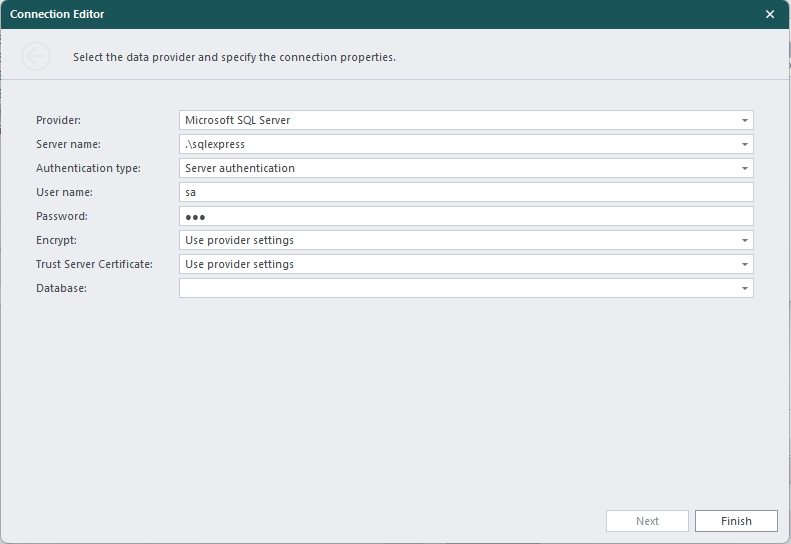
And then enter your database authentication credentials and select your target database.
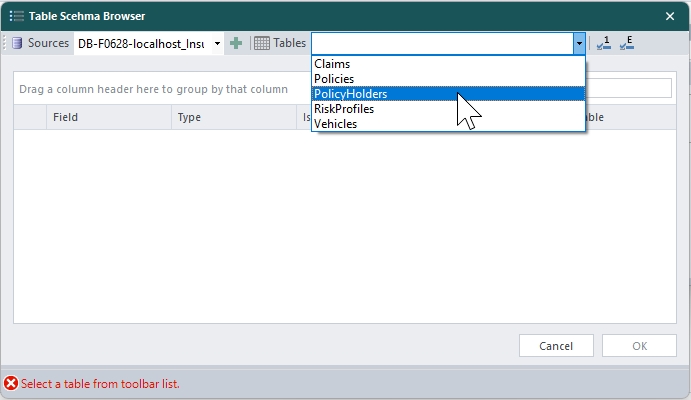
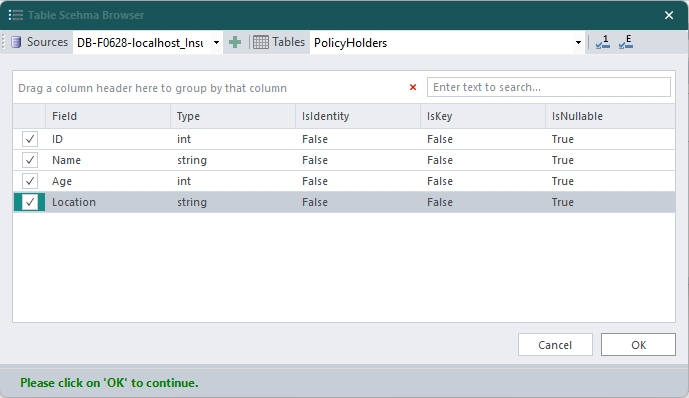
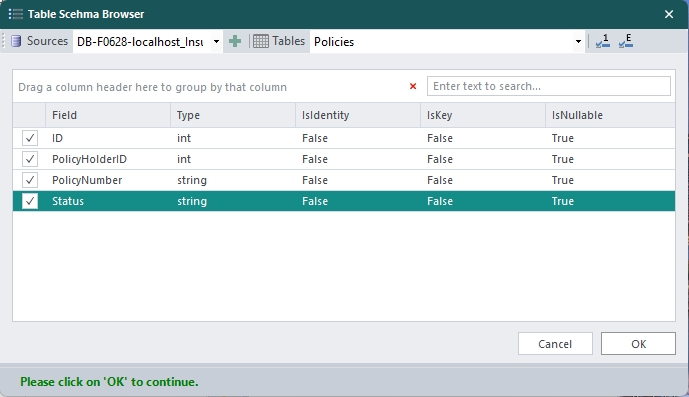
Open the Table Schema Browser, select the required physical tables, and choose the necessary data fields.
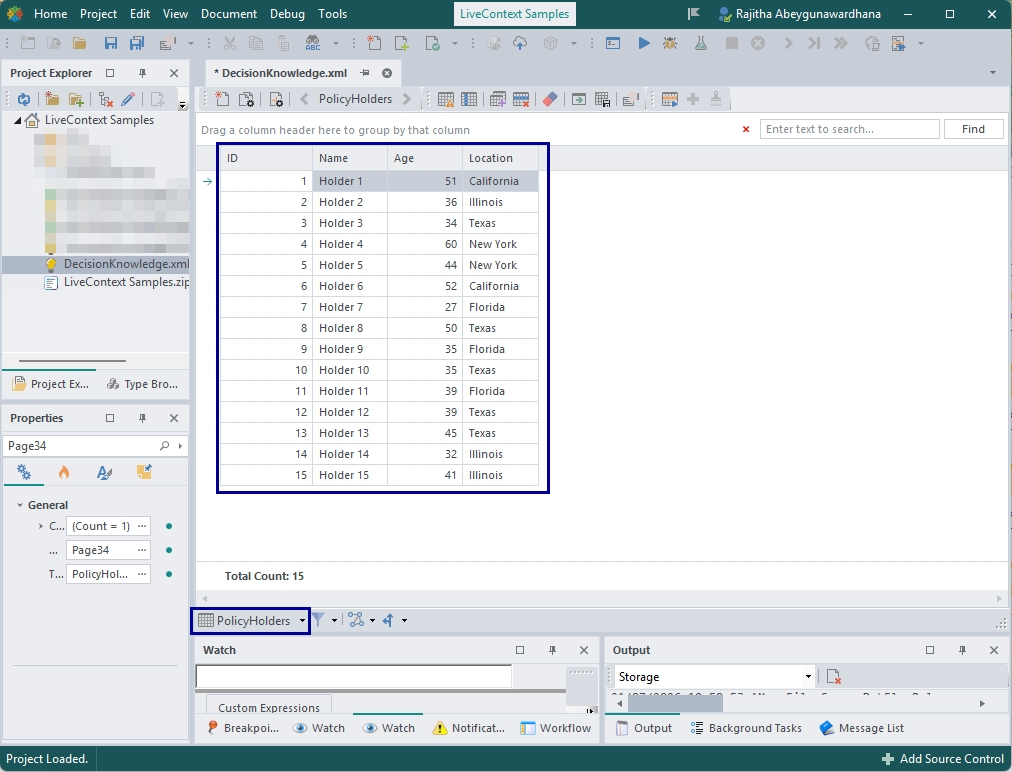
Once you're done that, you can see the data grid based on the table columns you selected.
Transform
Then there is a transformation step that will transform the data into the structure and format that the decision needs. In this step, we will map the physical schema to business entities and lookup values without using custom SQL.
Create a LiveContext™
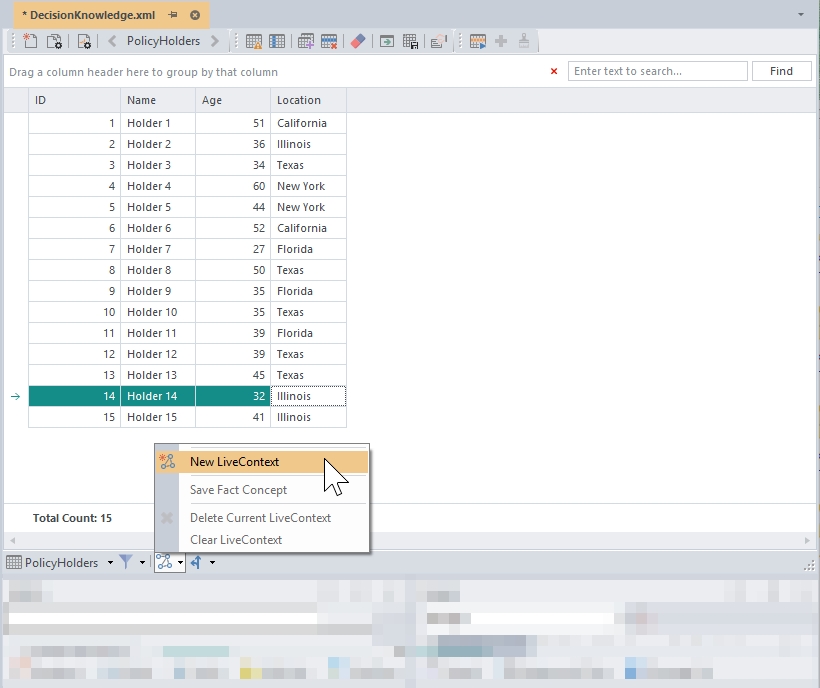
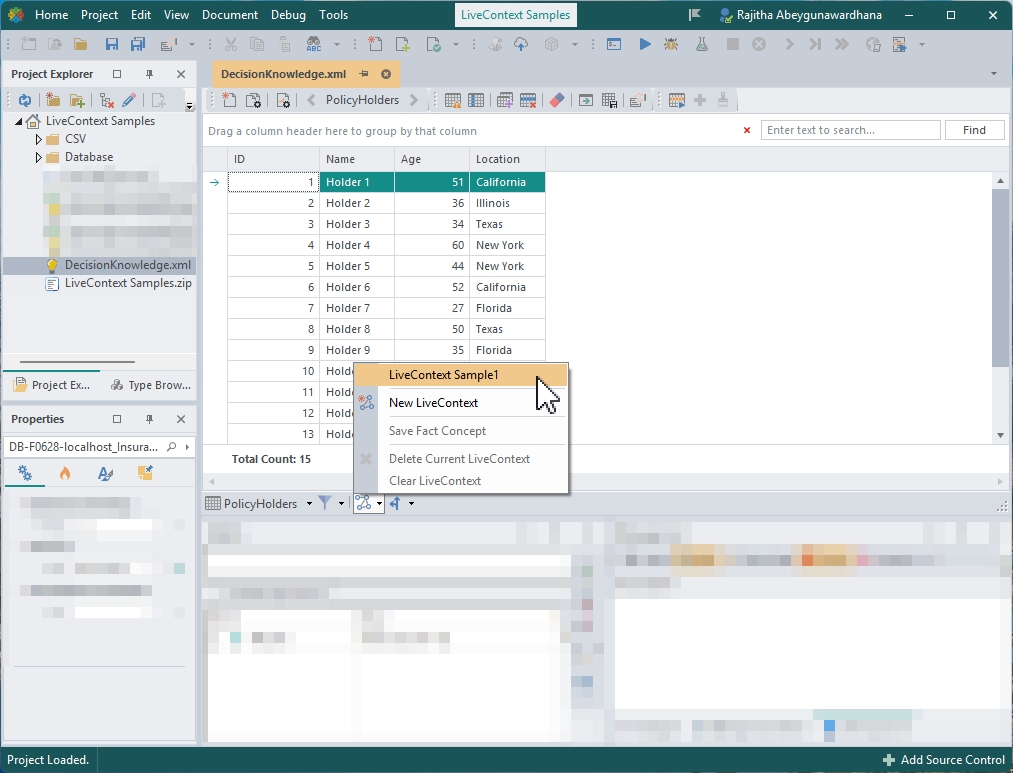
Click the LiveContext™icon in the toolbar, select New LiveContext, and assign a logical name.
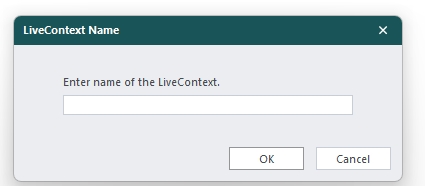
Then the dropdown list will show you the LiveContext™you just created.
Assign Hierarchies (Fact Concepts)
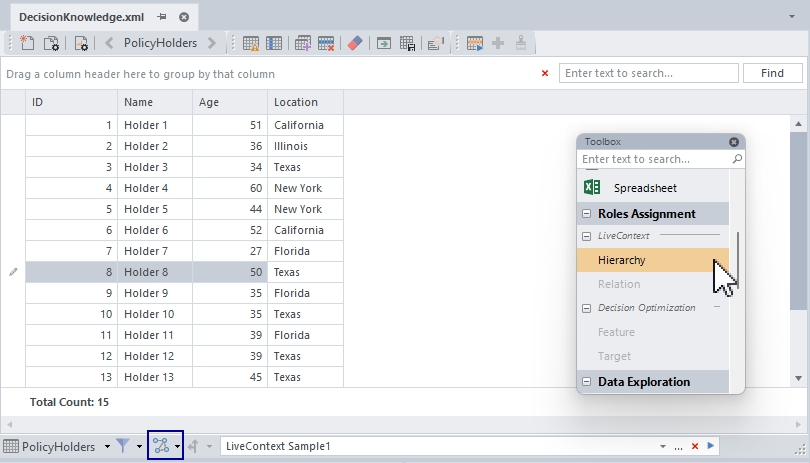
Drag the Hierarchy tool onto the data grid.
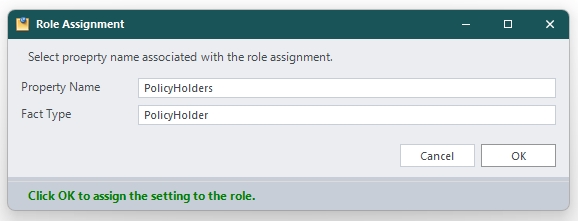
In the Role Assignment window, set the singular Fact Type and plural Property Name.
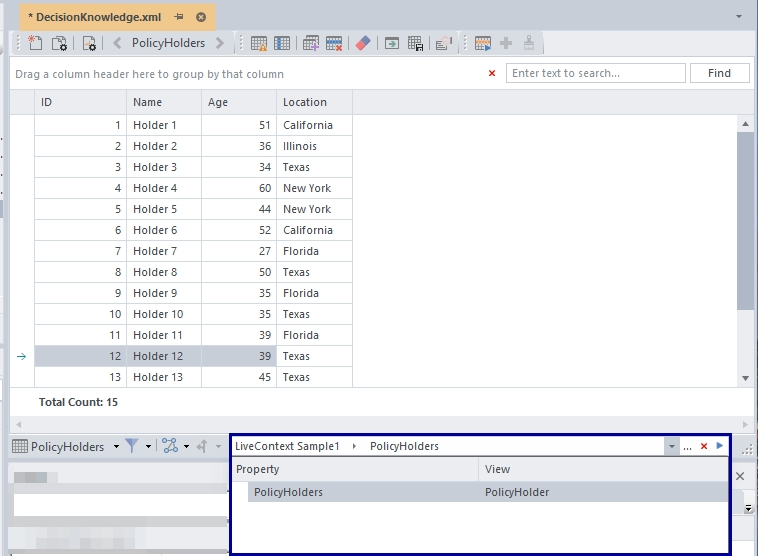
Now you can see that the LiveContext™hierarchy is being built.
You can repeat the same steps for connecting other tables to create relationships.
Define Relations (Role Relations)
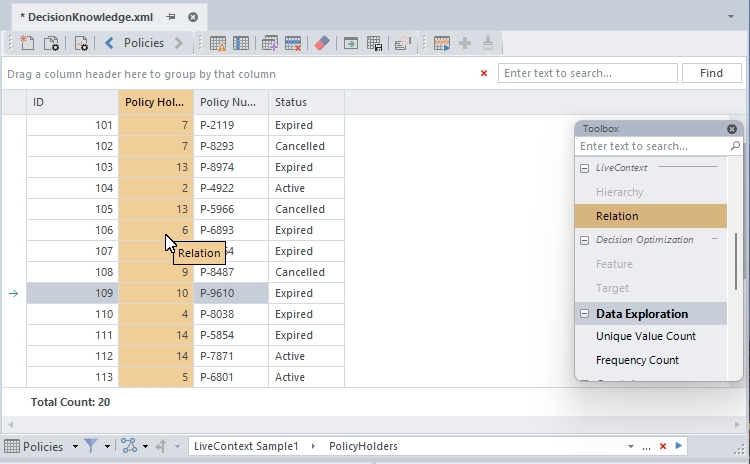
Drag the Relation tool onto specific foreign key columns to establish the links (e.g., connecting Policy Holders to Policies) instead of writing manual SQL JOIN clauses.
Then specify the relationship.
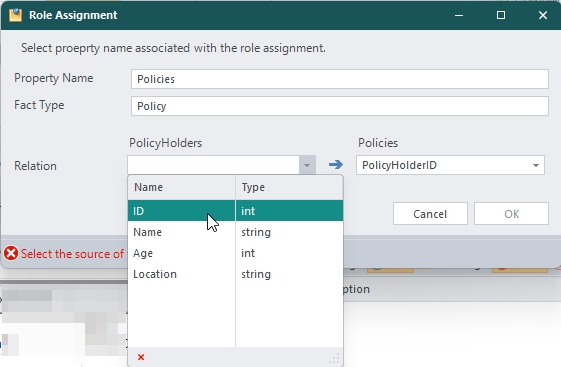
If a database table column is renamed or a table is split during future database migrations, you only need to update this mapping layer, and your core business rules remain untouched.
Deliver Decision-Ready Data
LiveContext™saves as a Fact Concept Model
Select Save as Fact Concept from the toolbar to generate a semantic layer that can be consumed across decision logics.
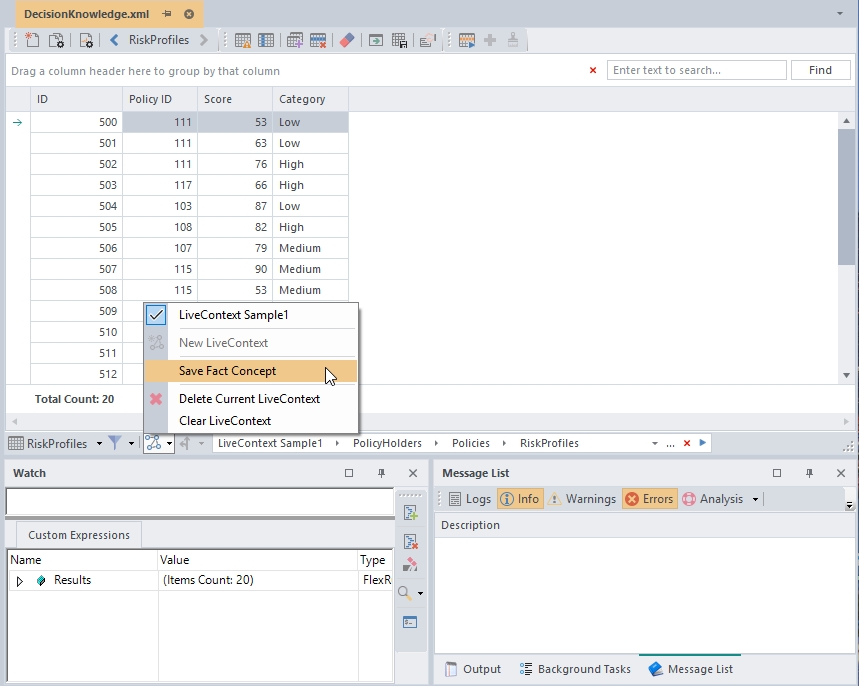
It will create the Fact Concept based on the hierarchy you specified.
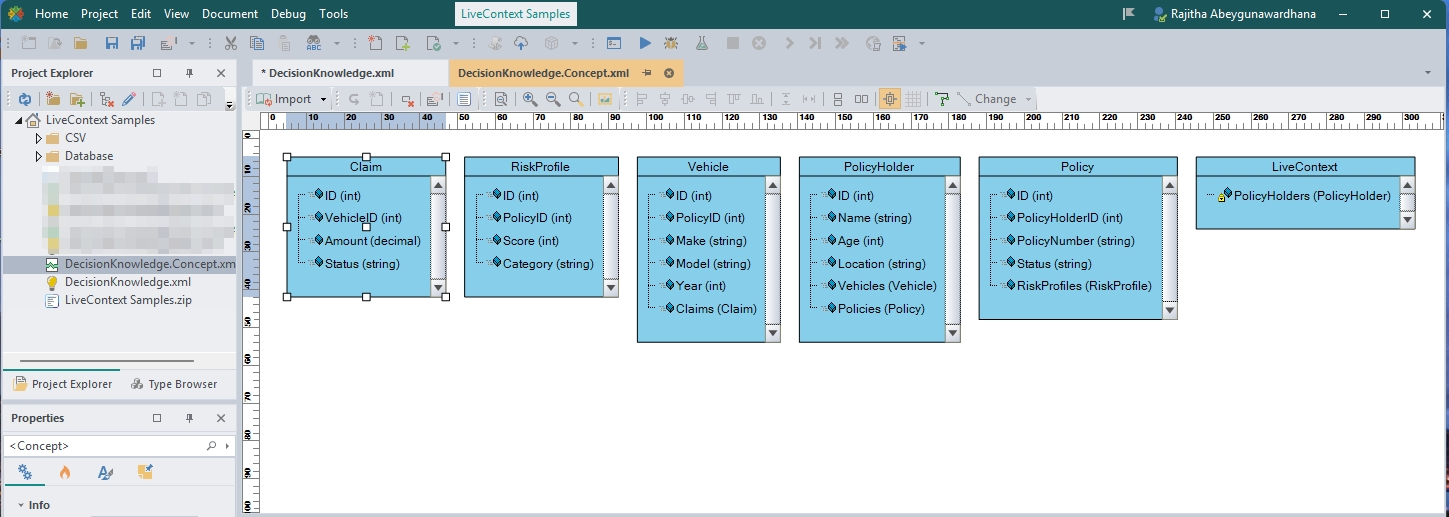
This context layer also supports lazy loading, which queries the data based on the parameterized values in the decision logic, avoiding the upfront loading of full database records.
How to use the LiveContext™
Let's compare what you would need to write in SQL vs. using LiveContext™. When you write queries, it requires multiple JOINs and WHERE clauses as follows:
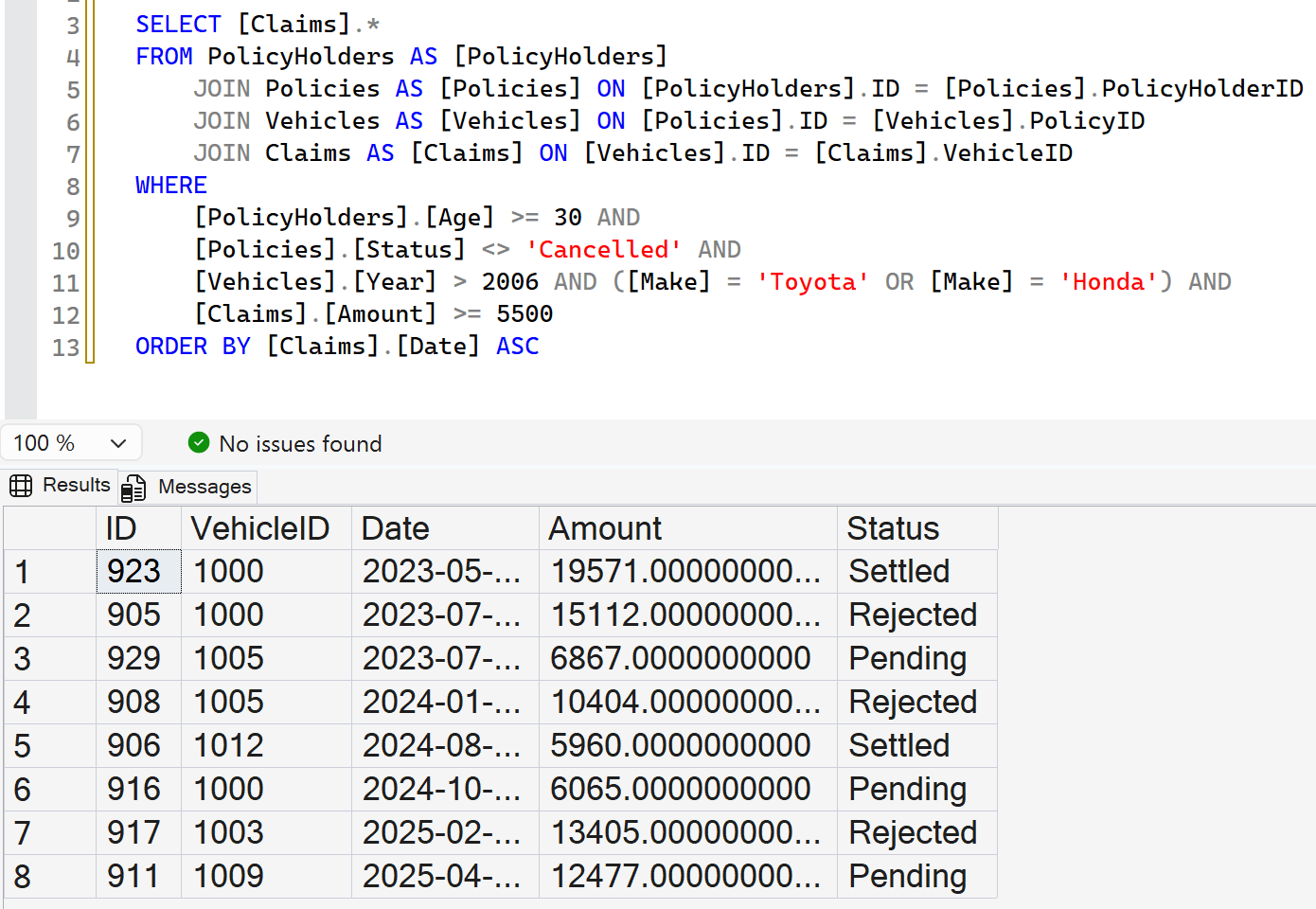
The following is the same response you get using LiveContext.

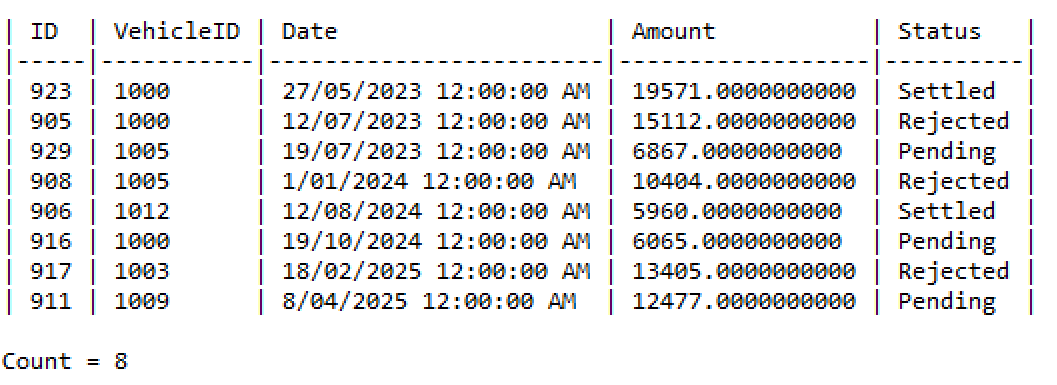
Declarative Query Options
You can also control the response using built-in options:
- Sorting: Use $order is [‘ColumnA', ‘ColumnB'] to sort fields.
- Paging: Apply $page in [0..5] to limit execution memory usage.
- Top-N Limits: Use $top is 10 for fixed row caps or $top is 25% for percentage-based row filtering.
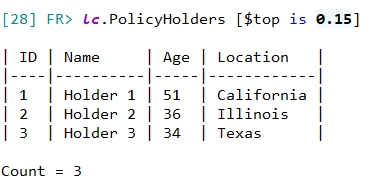
Interactive Shell Testing
You can validate and inspect collection queries in real time using the Shell Window before wiring them into decision models

If you want to learn more about how to use the LiveContext™ with some real examples and download a sample project, read this article.
Use LiveContext™ in Decision Models
Once you validate the queries, you can use them inside your decision model. You can drag and drop the LiveContext™ node to link your already created LiveContext™ and set up queries as follows.
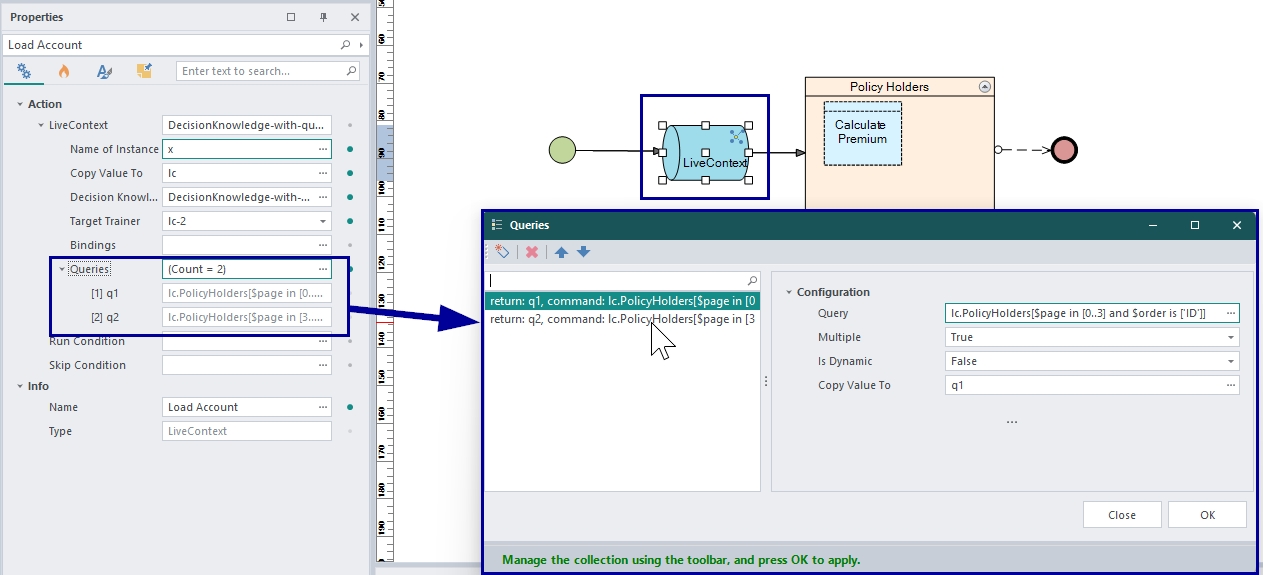
The LiveContext™ understands what part of the data is needed for the decision execution based on the decision stage. Therefore the decision may not need to have all the data upfront.
Also, it can cache the already loaded data for the life-cycle of the decision or the execution so it helps to avoid loading the same data multiple times.
Summary
Decoupling business rules from your physical database using the LiveContext™ layer ensures that your database handles storage, while business rules reside in decision models rather than in rigid, hardcoded SQL scripts.