In the FlexRule platform you can identify rule conflicts in Decision Model and Notation (DMN) projects. When you use validation tools like identifying conflicts it saves time debugging. To identify conflicts you use document validation, which also identifies errors, warnings, and information. For more on validating documents, check out this article in the resource hub: Validating a Document.
When you validate a document, you can use identify rule conflicts to detect conflicting rules such as rules with the same conditions.
Set Messages to Detect Conflicting Rules
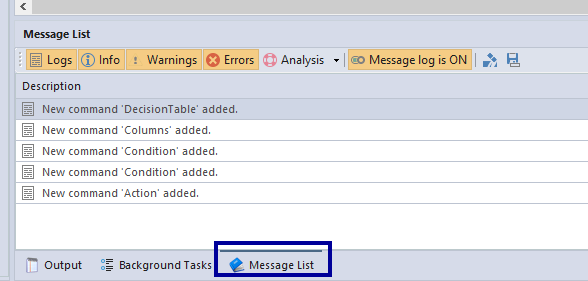
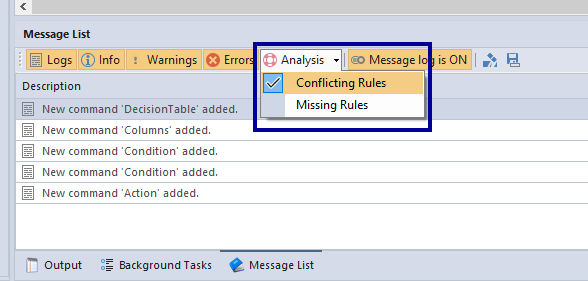
If you want to detect conflicting rules, before you validate a document click on the messages list window tab at the bottom of designer.
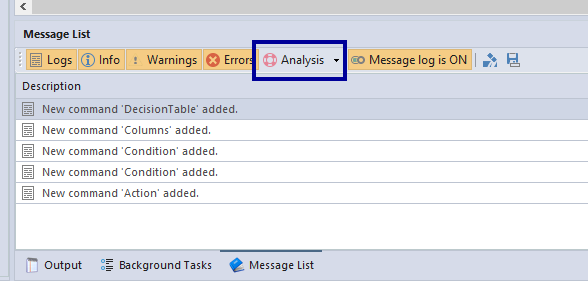
Click on “Analysis” to open up a dropdown menu.
Click on Conflicting Rules to put a check next to it.
Validate a Document to Detect Conflicting Rules
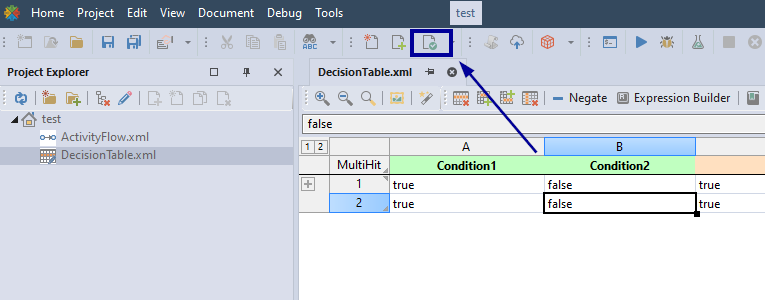
After setting the messages list to detect conflicts, you can validate the document to see if there are conflicting rules. To validate, select this icon in the ribbon menu in designer while the document you are validating is open. This can also be done from the top ribbon menu under Document > Validate the Current Document
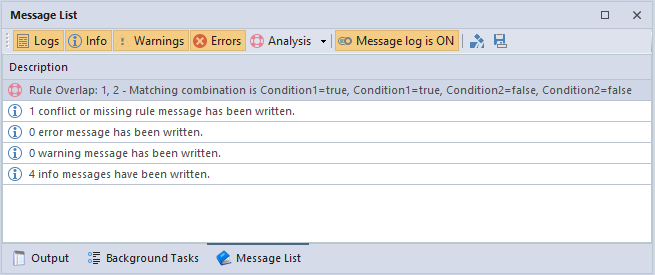
Check the messages list. Ensure that the messages log is set to ON.
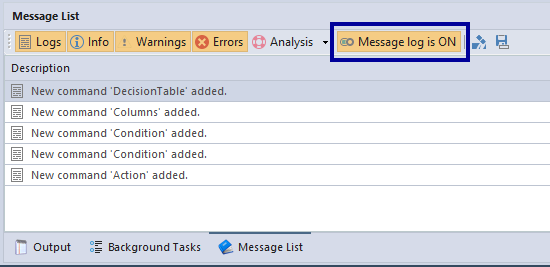
In this example, we are detecting conflicting rules for a decision table. It was found that both conditions use the same combinations of rules.

For more information on this, see the FlexRule Resource Hub article on validating a document: Validating a Document.
Summary of Validation Document
You can save time debugging by using document validation in FlexRule, which helps identify errors, warnings, and rule conflicts. To detect conflicting rules, first open the Messages tab in Designer, go to the “Analysis” dropdown, and check “Conflicting Rules.” Then validate the document, and make sure the messages log is turned on. This process will highlight issues like duplicate conditions in decision tables, helping you quickly pinpoint and resolve rule conflicts.