Importing an Excel file to create test cases for a Decision Model and Notation (DMN) model is faster and more convenient. A user can import an Excel file to create test cases in FlexRule Designer. The test cases help the user to verify that the model is working as expected.
Create Test Cases
You can find the Test Case Logic Document from the New Document window in the Test Cases section.
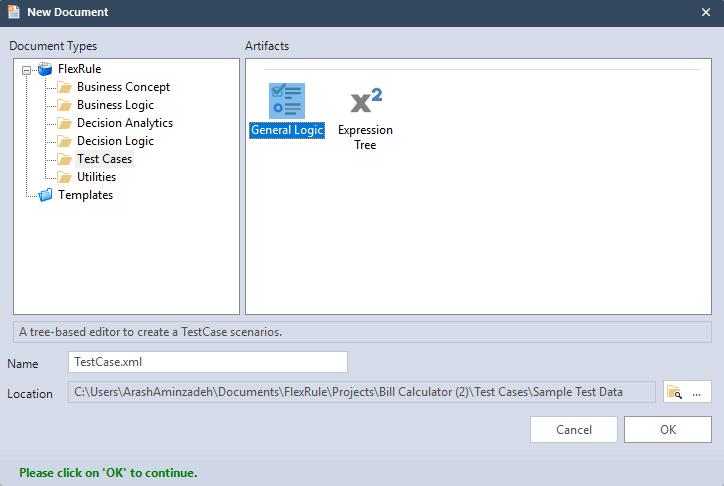
In the next step, you need to link your Logic document to the Test Case. This means you specify the logic document for which the test case is created.

Importing an Excel File
In this step, you can import your Excel file to create all the test cases you want. In this scenario, I have a model with three inputs and three outputs.
Here is the input structure for the model.
 {
    "UsageUnits":
    {
        "TotalNumberOfUnits":0,
        "NumberOfUnitsThisMonth":0,
        "NumberOfUnitsThisHour":0
    }
 }
And here is the sample Excel File.
Mapping the Excel File
After importing the Excel file, you should map it to the FlexRule Designer. This means you should specify the inputs, outputs, parameter type, and Test type.

As you can see in the above image, you can use the drop-down menu. It displays all the inputs and outputs you defined in your logic document. Also, there is an option “Set Value of a cell” , located on the top left, that helps you to set the type for each cell.
Run the Test Cases
Once you select OK, all the test cases are created for you. Since we have three different outputs, FlexRule creates three different AssertTrues and fills in the relative information for each test case.

To run the test cases, you need to select the Section and click on the Run Tests.

You can find more information about importing an Excel file to create test cases for DMN in this resource hub page.
Summary
To create test cases by importing an Excel file, you just need to create an Excel file with input and expected output. Then, click on the import Excel file to the test case and map the Excel to the FlexRule Designer. Importing an Excel file to create test cases helps you verify the expected results in your model in the design stage.