Connecting a spreadsheet to a DMN project is a simple task in the FlexRule platform. The data can be mapped out and manipulated in whatever your project requires. A spreadsheet file from Excel or a CSV file is the most common file used to store data.
Add an Activity Flow to your DMN Project
Add an Activity Flow by selecting the Add New Document icon in the project explorer, and you can find it under Business Logic. Or if you already have an activity flow where it makes sense to add the spreadsheet node, you can add it there.

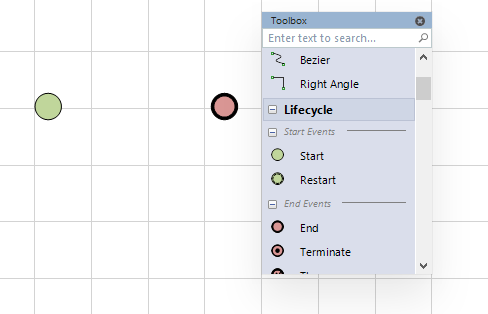
In the activity flow, be sure to add a start and end node because every activity flow requires one. Open the toolbox with Alt+x
Add a Spread Sheet to a DMN Project
Scroll down in the toolbox to the Data section and add a spreadsheet node to the flow.

Select the node and in the properties window to the left and fill in informaiton for Type, Maps, CopyValueTo, and URI.
Type is the filetype of your spreadsheet.

Assign labels to each of the columns of your spreadsheet using the Maps section. Map out any columns you intend to use.

Enter the file location into the URI field. Enter a parameter into the CopyValueTo field, which will store the data. The result will be a dataset. You can work with it using the guidelines of the Database and Rules article found in our Resource Hub.
Add a Spread Sheet to a DRD
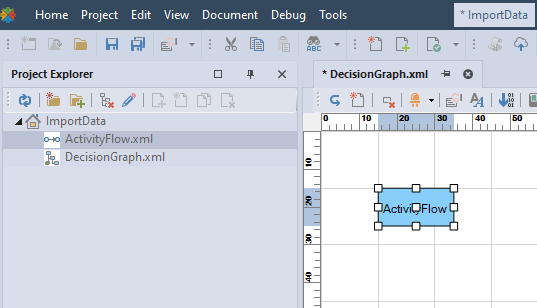
After importing a spreadsheet to a flow, drag and drop the flow into the DRD orchestrating the DMN project.
Summary
Connect to XLSX, XLS, or CSV filetypes in DMN projects using the spreadsheet node of an Activity Flow logic document. If your main orchestration for a DMN project is a DRD you can create an Activity Flow with a spreadsheet node and drag-and-drop it into your DRD. Check out our articles on Data and Integration for more information on connecting a spreadsheet to a DMN project.