If-then-else logic in DMN is a fundamental part of creating a model of an organization’s requirements. A boxed expression implements this logic using a boxed conditional. For more information on creating boxed expressions, see the FlexRule Resource Hub article: Creating Boxed Expressions. Also, you can use if-then-else by writing a FEEL expression; for more information, please see this guide article.
A Boxed Conditional offers a straightforward visual format for defining if-then-else statements.
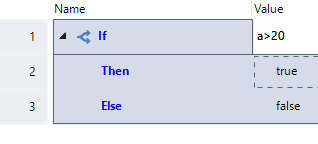
Add to a Boxed Expression
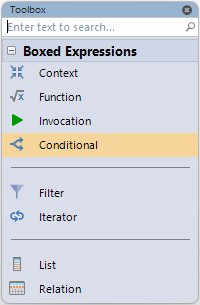
While in a boxed expression document, drag and drop the boxed conditional from the toolbox into the document. Open the toolbox with Alt + x
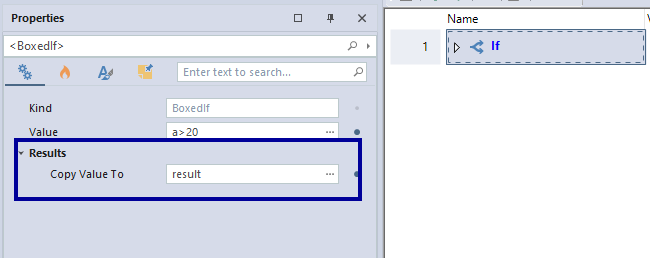
Set the value of the conditional's output to copy to an output parameter.
Add the expressions to the if, then, and else sections

Add the Boxed Conditional to a DRD
The boxed expression can then be used in a Decision Requirement Diagram. Drag and drop the Boxed Expression with the boxed conditional to a business knowledge node in the DRD.

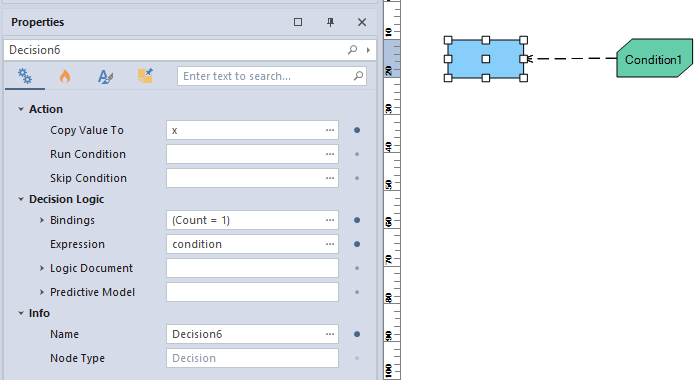
Give the business knowledge node a name and reference that name in the associated decision as if calling a function and set the result of the decision to a parameter.
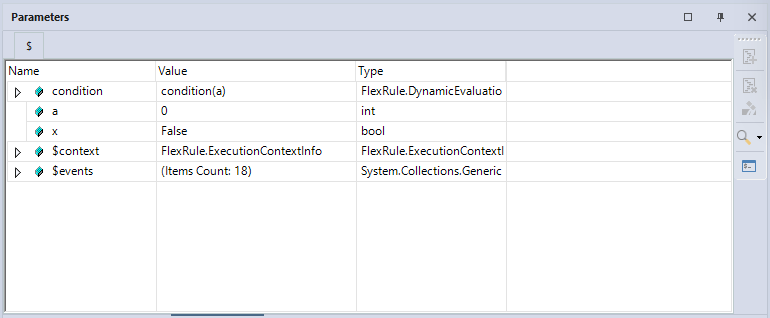
Run the project and view the parameters window. You can view the relation objects in the parameter.
For more information on this, see the FlexRule Resource Hub article on the DMN Decision Requirement Diagram. Decision Requirements Diagram
Summary of If-Then-Else Logic in DMN
If-then-else logic in DMN is implemented using a boxed conditional, which provides a clear visual format within a boxed expression document. You can drag it in, set the output parameter, and define the if, then, and else parts. The expression can be added to a Decision Requirement Diagram via a business knowledge node, with results viewable after running the project.