Validating DMN models at design time is critical for identifying potential issues with rules at design time. Key problems uncovered during the validation include:
- Structural issues
- Missing values or elements
- Rules overlap
After navigating to the relevant DMN logic document, click on the validation icon on the toolbar.

Or you can go to Document --> Validate the Current Document from the menu bar.

Validation Results
Then the result of validation will appear on the Messages pane:

In the Message List pane, you have to tick the validation message options you want to see.
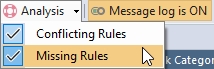
The message list then shows all of the information related to the DMN logic document validation. You will get different message types:
- Information: Just information regarding the validation process
- Warning: There are some issues with documents, but they are minor.
- Error: The document is invalid, and should be fixed.
- Analysis :
- Conflicting Rules: Detect conflicting rules such as rules with the same conditions.
- Missing Rules: Detect the missing rules when the condition is defined as a Business Glossary option list, and all the options are not presented in the Decision Table
Finding the Issues
On the message list, when you double click on an error, it redirects you to the specific element in the document which is causing the problem, so you can find it easily. Then check the error message – it is probably referring to a missing property or invalid configuration of a set of properties. These can be fixed in the Properties window.
The following example shows a Decision Table validation which shows validation results in the Message Pane. According to the validation results, the Decision Table has 3 overlapping rules.

Summary of validating a DMN model
Validating DMN models at design time is essential for detecting potential issues such as structural problems, missing values or elements, and overlapping rules. You can easily run validation by clicking the validation icon. The validation results appear in the Messages pane, where you can filter and review different message types, including errors, warnings, information, and analysis of conflicting or missing rules. Double-clicking an error takes you directly to the problematic element, allowing you to quickly identify and fix issues. This feature helps ensure your DMN models are complete, consistent, and ready for deployment.